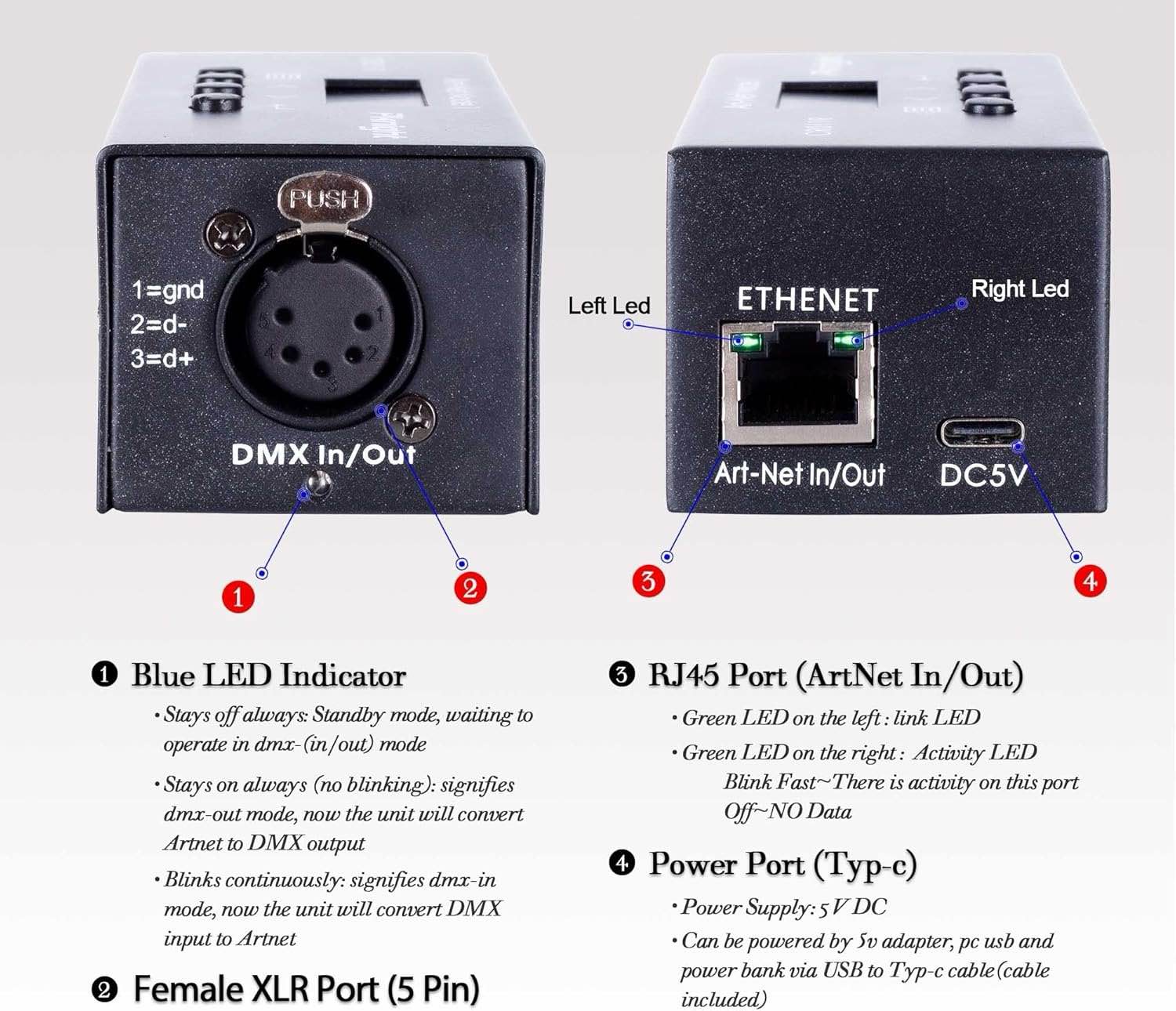


Description
User Manual: Download the CR011R manual (PDF)
Connect CR011R to a Router with Photon 2
Connect Pknight CR011R to Resolume Arena
Features
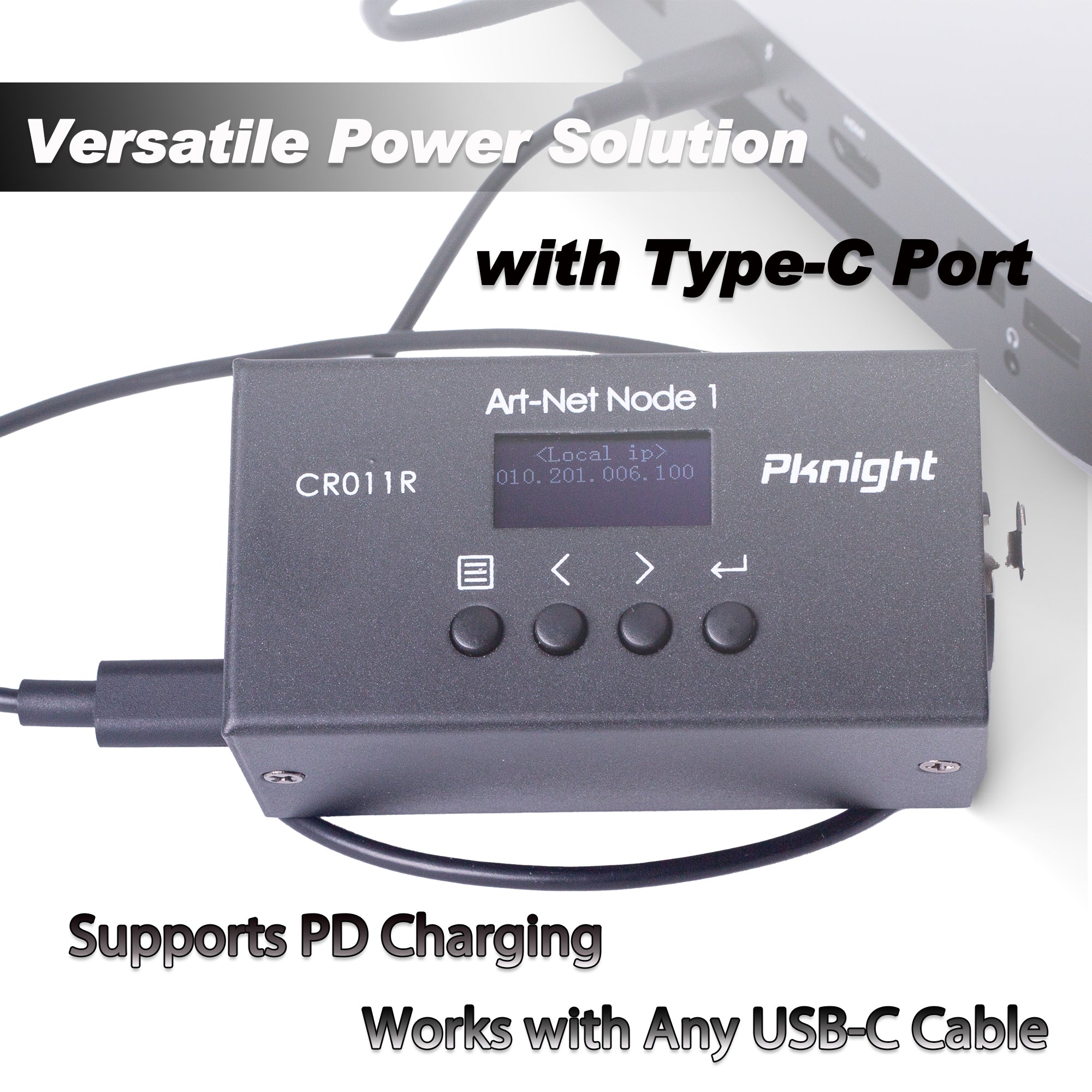
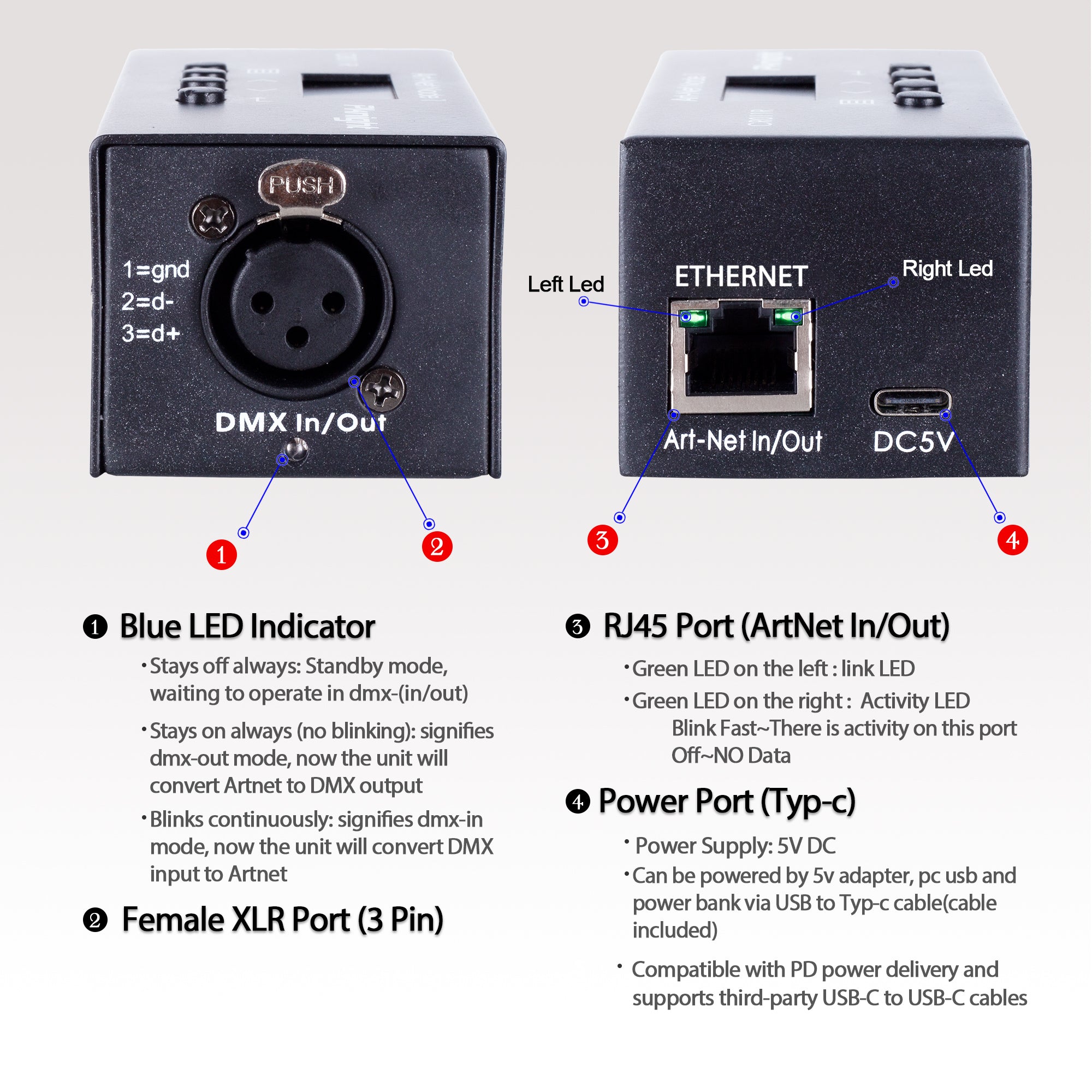
- 5V DC and USB-C Power: Supports 5V DC power input and is compatible with USB PD (Power Delivery). Third-party USB-C to USB-C cables can be used with compatible 5V adapters, computer USB ports, and power banks.
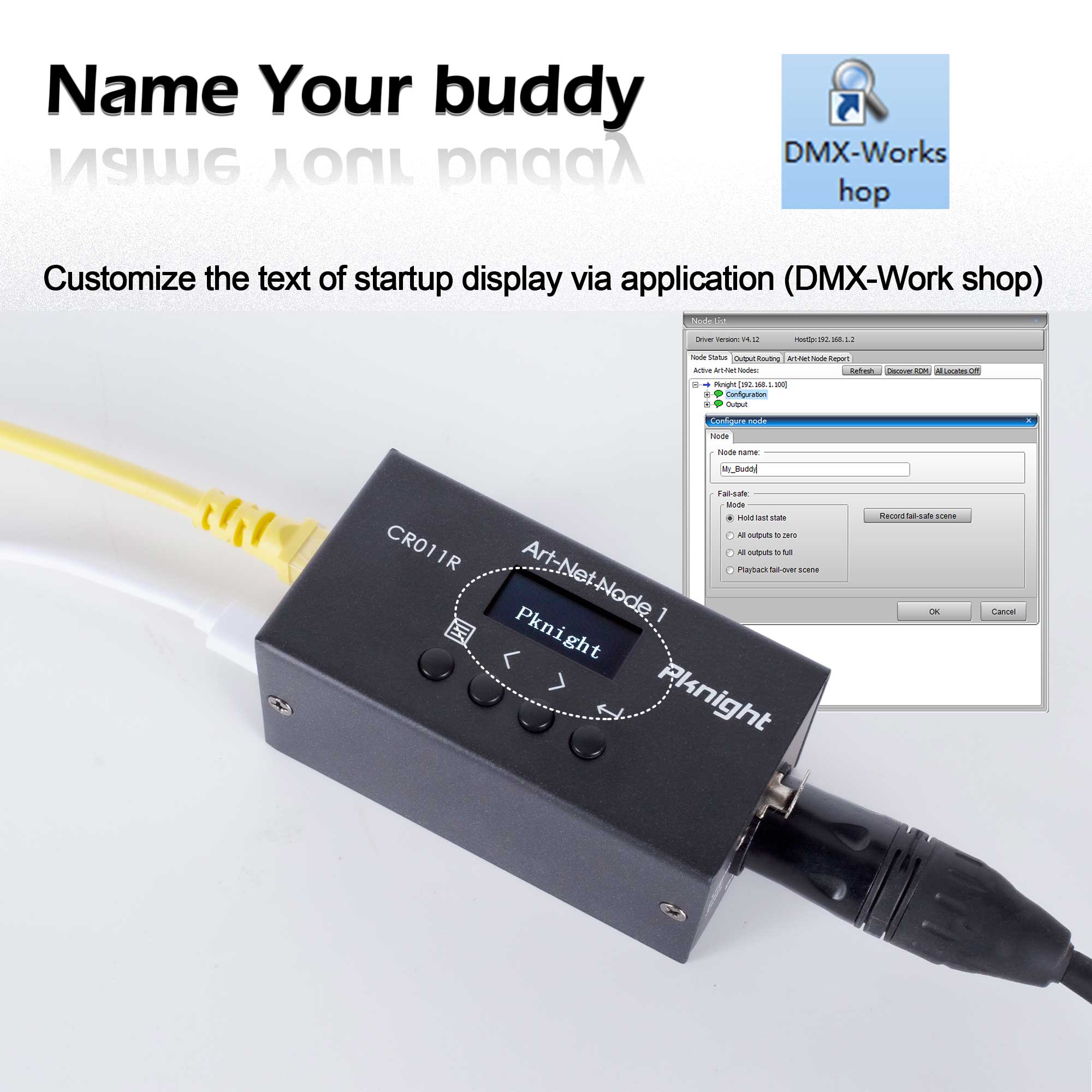
- Custom Startup Display: Customize the startup display text with DMX-Workshop. This feature is easy to set up.
-
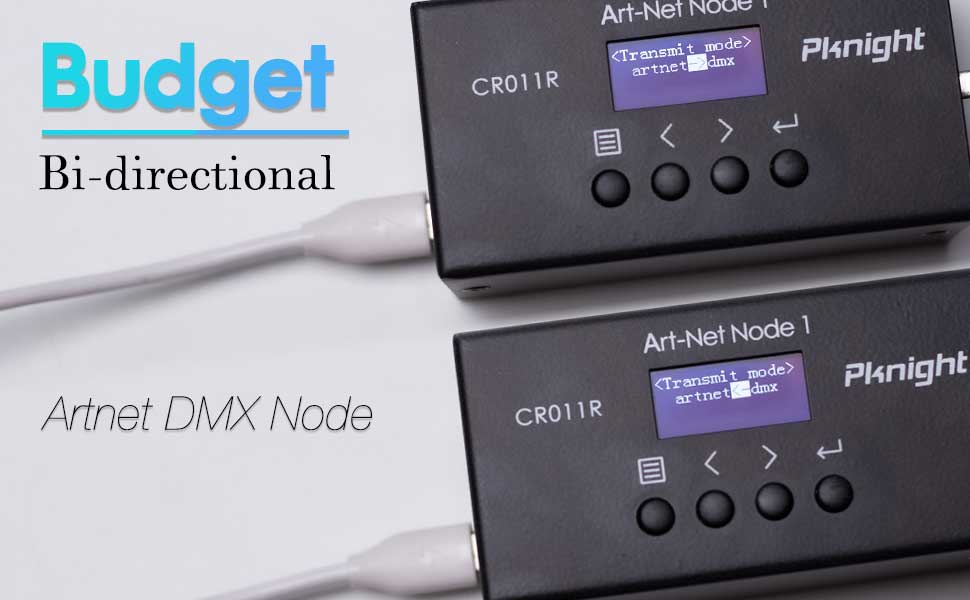
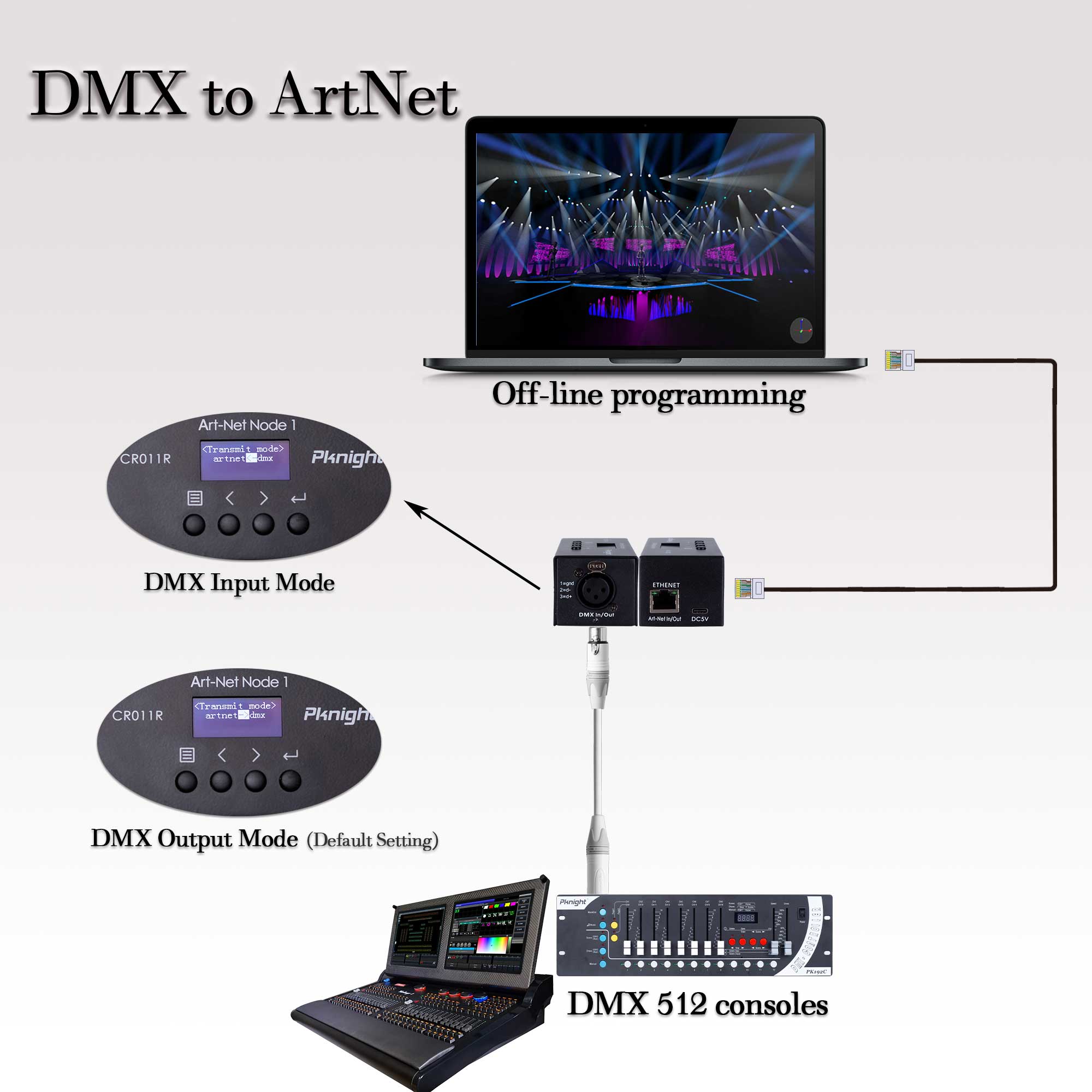
Bidirectional Art-Net/DMX Conversion: Select the input or output mode on the Pknight CR011R to convert between DMX512 and Art-Net. To convert an incoming DMX signal to Art-Net, set Transmit mode to
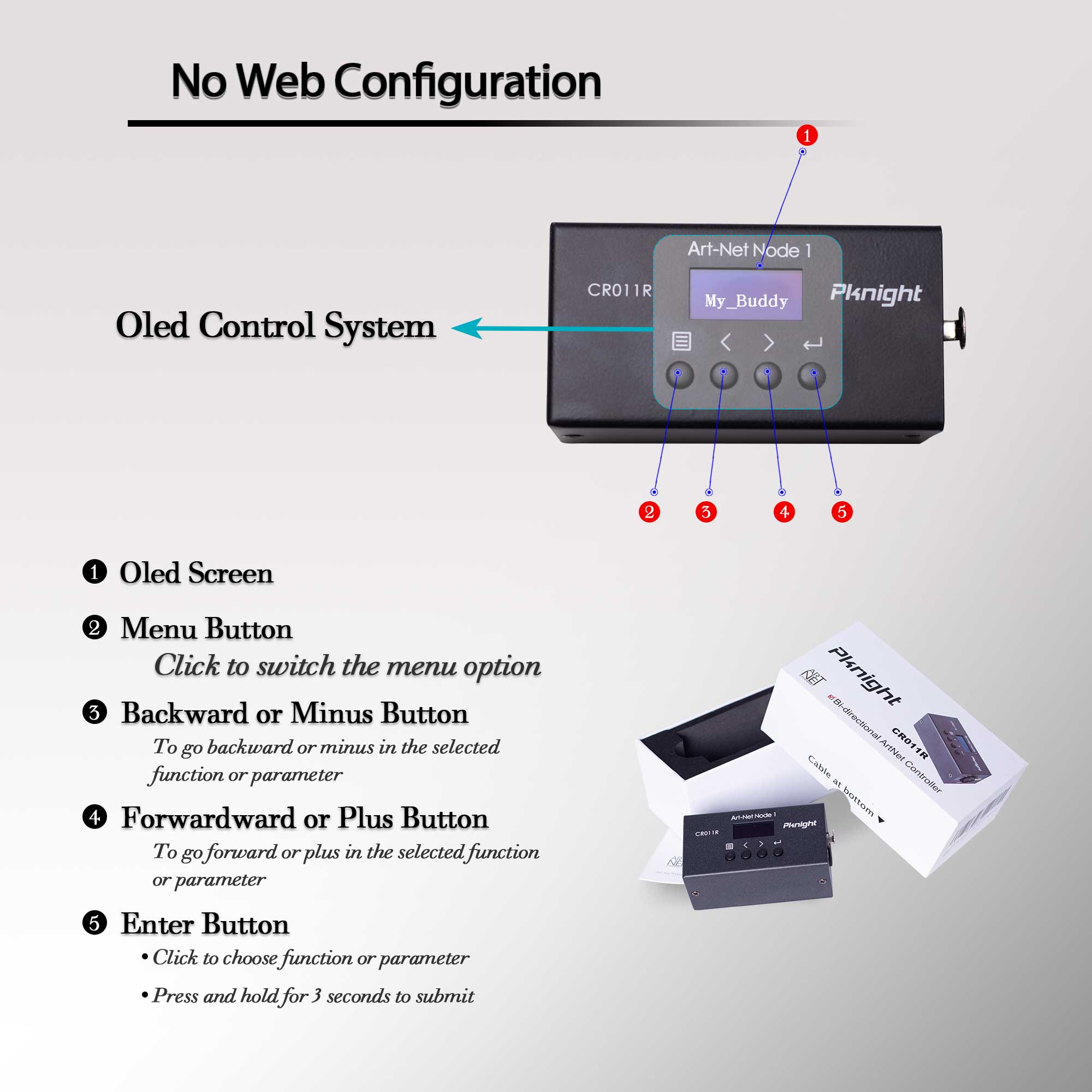
artnet < - dmx. - OLED Control System: Configure the node directly using the OLED display and four function buttons. No app or web interface is required for basic setup.
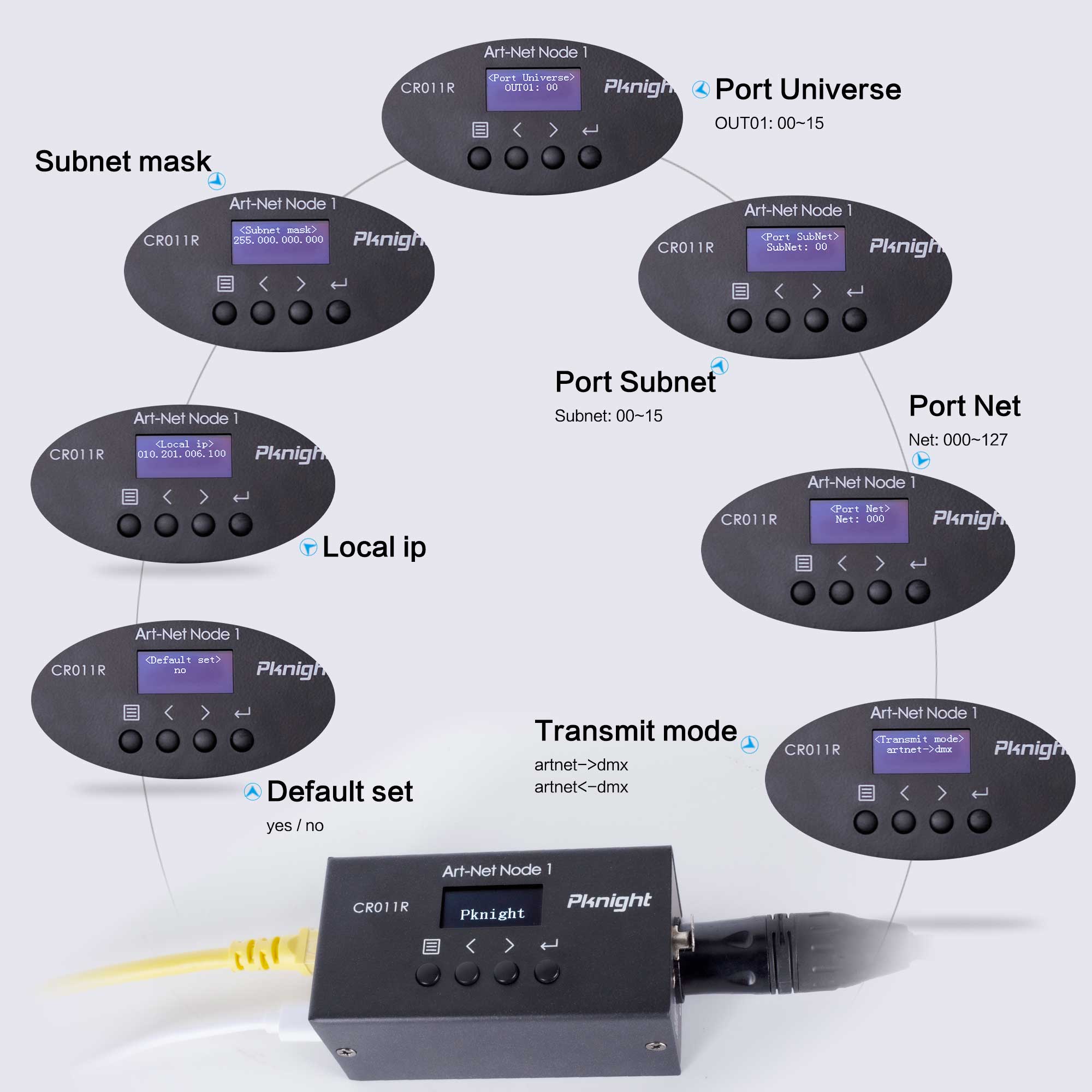
- Remote Configuration: Use DMX-Workshop to configure the IP address, subnet mask, net address, subnet address, and port universe remotely.
- One DMX Universe: One DMX512 port provides up to 512 channels. Choose the 3-pin or 5-pin connector option that matches your equipment.


Art-Net 4 Support
The CR011R provides one DMX universe (up to 512 channels). The network capacities below describe the Art-Net protocol, not the number of DMX outputs on this node.
Art-Net 4 was released in September 2016. It is the most powerful and flexible version to date and, in recognition of this fact, gained a PLASA Award for Innovation.
- Transports up to 32,768 DMX universes over a single network
- Uses standard ethernet technology equipment
- One IP address per gateway (up to 1000 DMX ports)
- All DMX ports can be assigned a fully independent universe
- Free network tools(DMX-Workshop)
- Protocol is free-of-charge
- Perfect for large scale LED installations

Configure the CR011R Node Name with DMX-Workshop
Step 1: Connect the CR011R and your computer using Ethernet.
Step 2: Set compatible IP addresses and subnet masks so both devices are on the same local network.
Step 3: Open DMX-Workshop.
Step 4: Find the CR011R in the Node List and configure its node name.
The node name is now configured.