





Description
Download the CR061S user manual
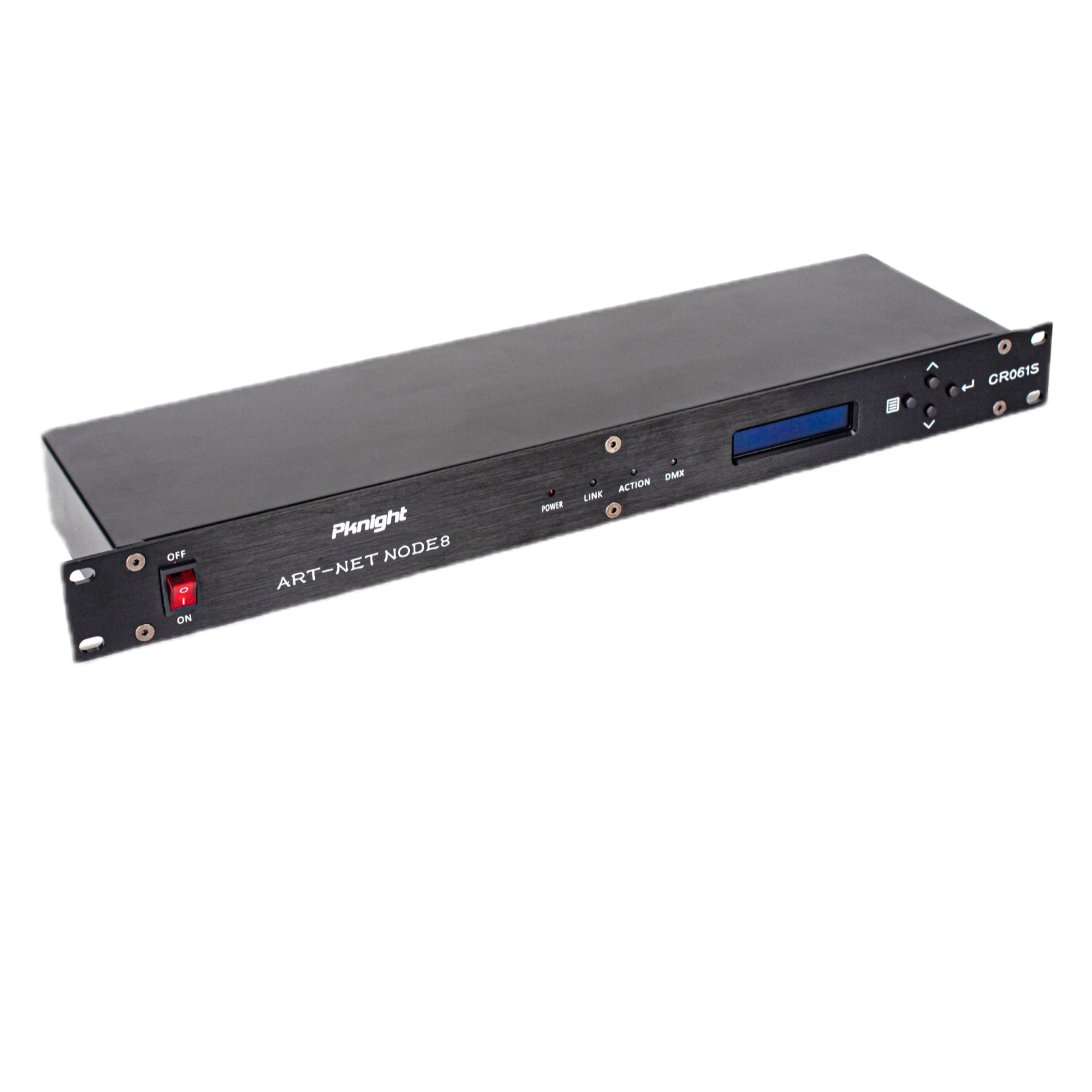
8-port Art-Net to DMX512 node for 19-inch, 1U racks. Route eight DMX universes from an Art-Net lighting network to eight physical DMX outputs.
Watch the overview:
About this item
- Art-Net 4 to DMX512 (Art-Net Only): Converts Art-Net to 8 DMX512 universes (up to 4,096 channels total) for reliable show control.
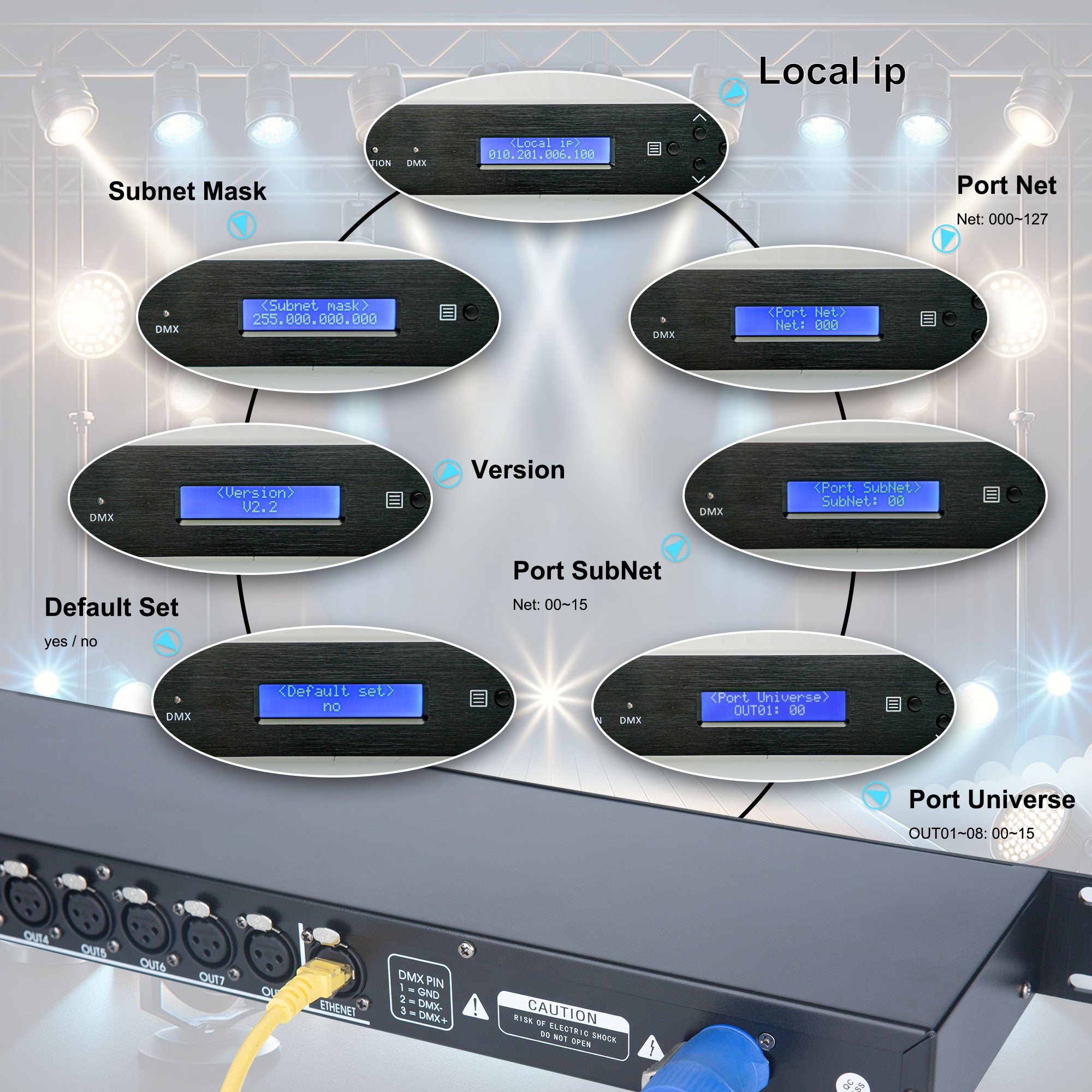
- Quick On-Device Setup: LCD and buttons allow fast IP and addressing changes on site—no PC required.
- Per-Port Universe Mapping (Shared Net/Sub-Net): All ports share the same Net and Sub-Net; set the Universe for each of the 8 outputs independently.
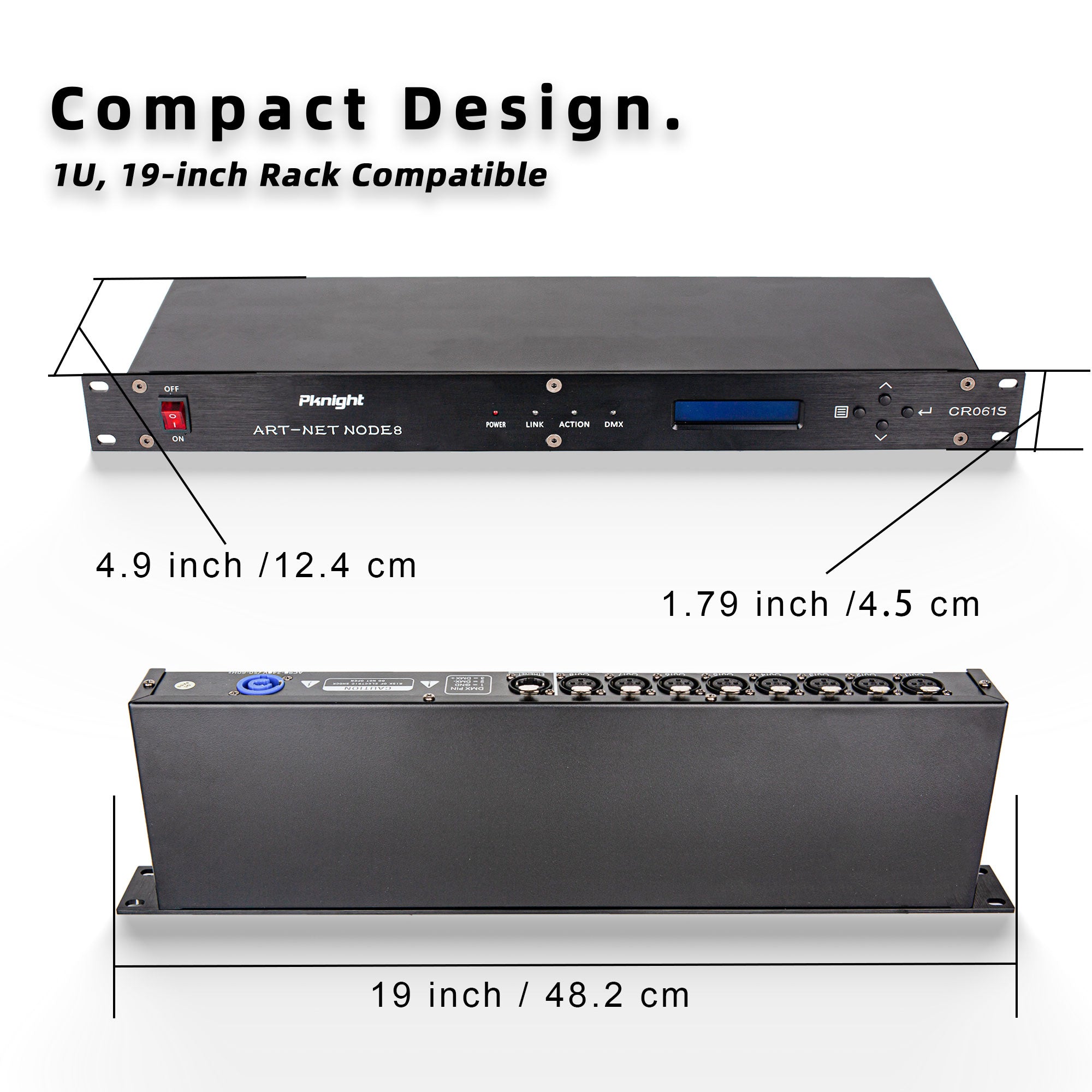
- 1U 19-Inch Rackmount: Compact, rugged metal chassis fits standard racks for clean installs in touring rigs, venues, and studios.
Product description


Overview
Quick setup: controller to DMX fixtures
- Connect the CR061S Ethernet port and your Art-Net controller or computer to the same lighting network. Set unique IP addresses on a compatible subnet.
- On the CR061S LCD, set the Net and Sub-Net used by your controller, then assign the desired Universe to each DMX output.
- Match the controller's Art-Net universe assignment to the selected output. Check whether your software labels its first universe as 0 or 1.
- Connect each DMX output to its fixture chain, then send a test look and confirm the network and DMX indicators respond.
For help planning how many universes your fixtures need, see our DMX universe guide. Compare other port counts and protocol options in the Art-Net to DMX node collection.

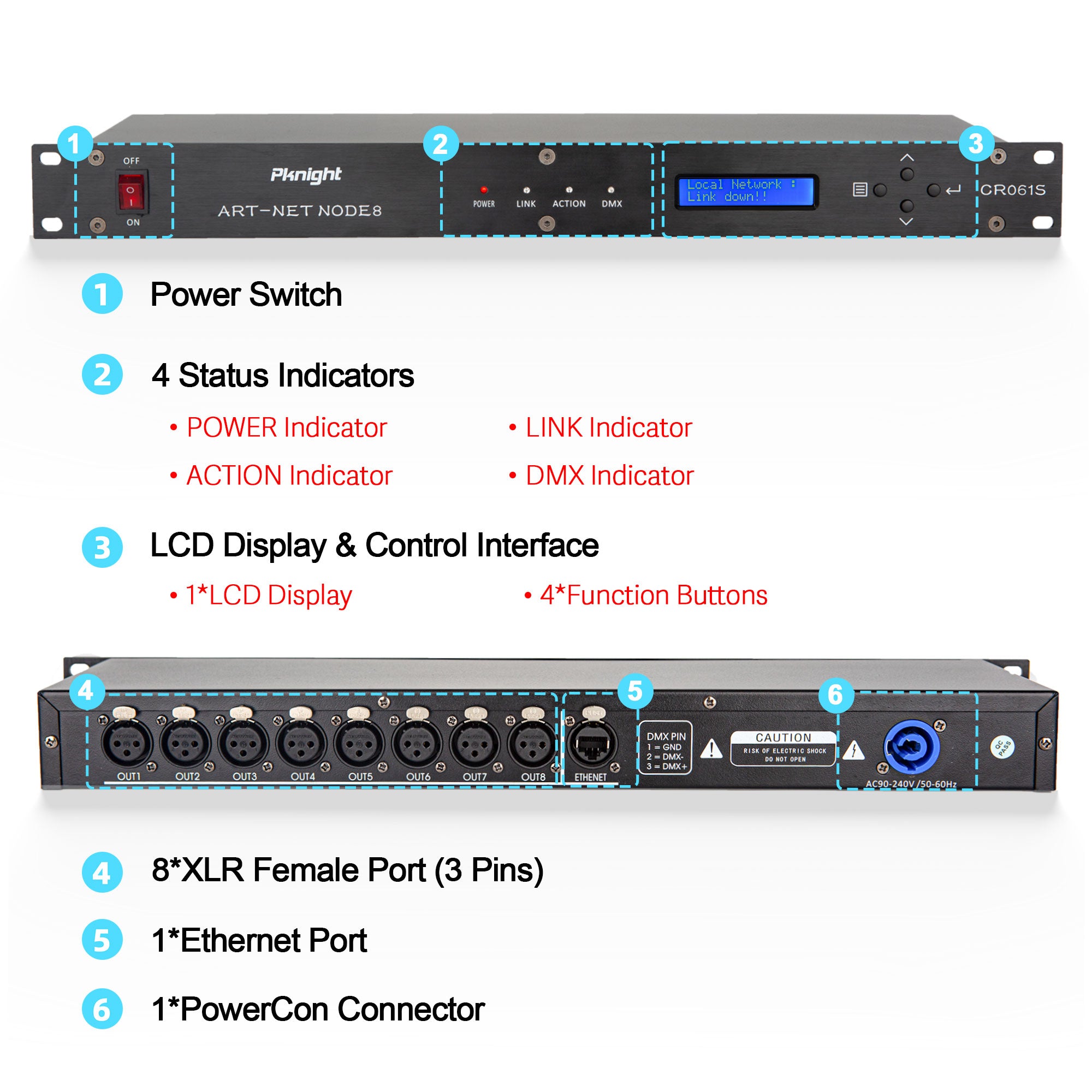
Four Status Indicators
- POWER Indicator: Red light on when the device is powered.
- LINK Indicator: Orange light on when connected to a network.
- ACTION Indicator: Orange light on when receiving network signals.
- DMX Indicator: Green light on when processing Art-Net signals
Tip: If the network activity light responds but DMX output does not, check the incoming Art-Net signal, the Net/Sub-Net/Universe mapping, and the connected DMX fixture chain.

Front-panel buttons
Use Menu to select a setting, Up and Down to change its value, and Enter to confirm it. Press and hold Enter to save your changes. The linked manual shows the full menu sequence.