
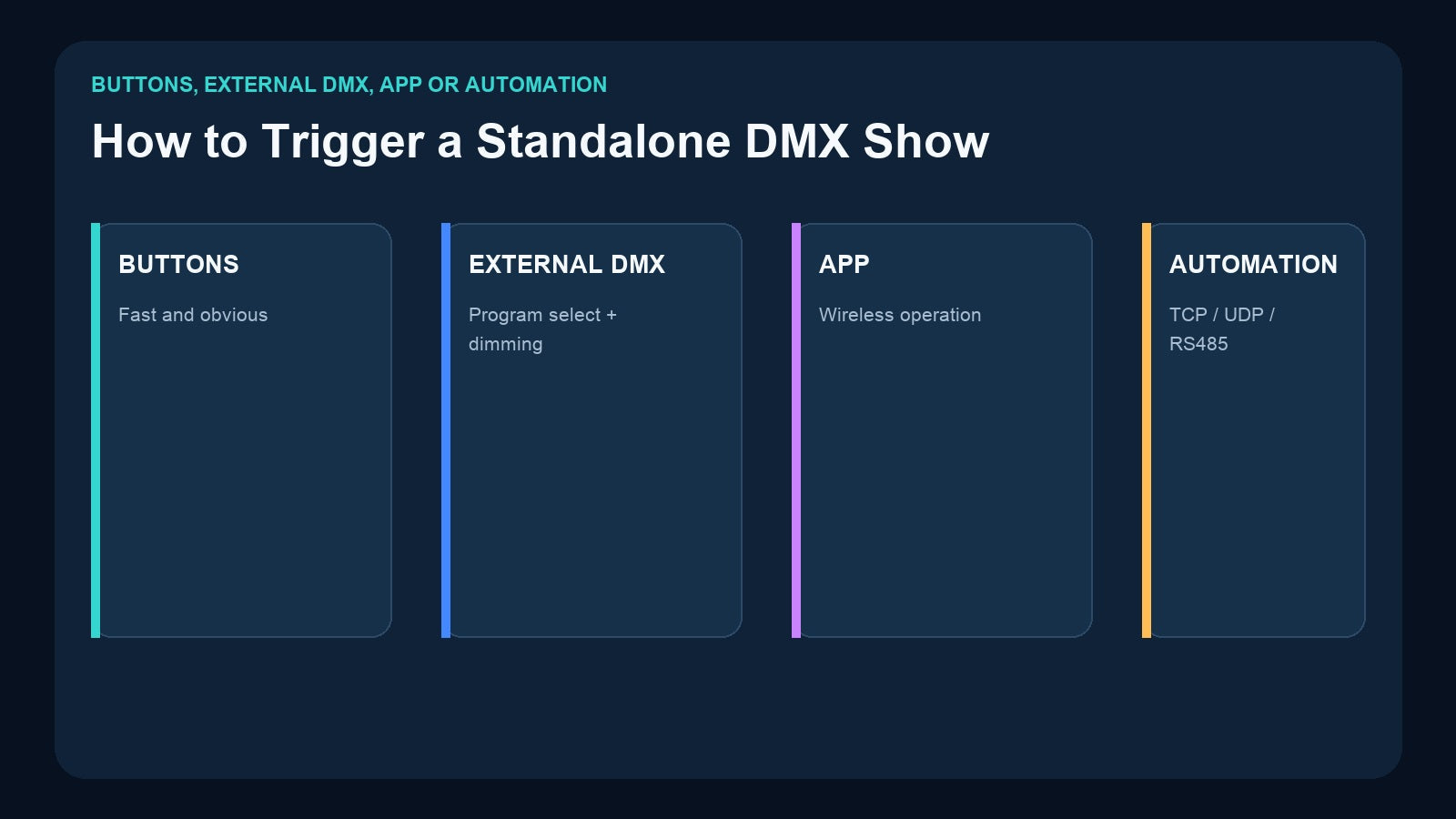
Recording a lighting show is only half of a standalone playback system. The other half is deciding how the right person or system will start the right content at the right time.
A technician may be comfortable selecting a Record ID from a display. Restaurant staff may need a labeled physical button. A mobile event team may prefer an app, while a banquet hall or exhibition may need the lighting show to respond to a central AV controller. The best trigger method is therefore not the most advanced one—it is the one that matches the operator, venue, and stored content.
Start with the Operator, Not the Protocol
Before choosing buttons, DMX channels, or network commands, identify who will operate the finished system.
- Venue staff usually need a small number of obvious, labeled choices.
- Lighting technicians can work efficiently with program IDs and external DMX control.
- DJs and mobile operators may value wireless selection from a phone or tablet.
- AV and facilities teams often need the show controller to respond to a larger automation system.

Also define whether the stored item is a static scene or a timed sequence. A physical button can directly recall a scene, or it can send the DMX selection value that starts a sequence stored in a separate recorder. For the underlying content distinction, see DMX Scene vs Sequence vs Show.
Method 1: Physical Button Triggering
Physical buttons are the most direct interface for repeatable venue cues. The operator does not need to remember a program number, open an app, or navigate a menu. A clear label such as “Welcome,” “Dinner,” “Reveal,” or “Close” communicates the result before the button is pressed.
The Pknight CM003 is designed for this workflow. It has five physical buttons, and each button can have an On Press and On Release scene action, providing up to ten actions. It can capture scene data from DMX512, Art-Net, or sACN and replay those scenes without the original console or computer.

Choose physical buttons when:
- The number of daily choices is small.
- Operators change frequently or receive minimal training.
- Immediate tactile control is important.
- The desired content consists mainly of static scenes.
- Button labels can clearly describe the result.
Buttons can also provide a simple front end for a sequence recorder. For example, a CM003 scene can include the external DMX control values used to select a Record ID on DR & PB MINI. The sequence remains stored in the recorder, while staff see only a labeled button. This combined workflow is explained in How to Trigger Recorded DMX Sequences with a 5-Button Controller.
Method 2: Local Front-Panel Selection
Local selection means the operator uses the recorder’s own screen and buttons to choose a program. This is appropriate when a trained person has physical access to the device and the number or ID of each show is documented.
The DR & PB MINI supports manual playback of recordings stored under Record IDs 1–255. Its OLED display and local buttons make it possible to select and play a stored one-universe sequence without an additional controller.
Local operation keeps the system compact, but it is less suitable when the recorder is installed in a rack room, when operators should not access configuration menus, or when show names cannot be represented clearly by numbers alone. In those cases, a remote trigger layer is usually easier to manage.
Method 3: External DMX Control
External DMX control lets another controller select content in the recorder. This is useful when the venue already has a DMX console, software interface, architectural controller, or button station.
Both DR & PB MINI and the Pknight 4-Universe Art-Net Recorder/Player use a two-channel external control concept:
- Channel 1 selects a recorded program or show from 1–255.
- Channel 2 provides playback master dimming from 1–255.

This approach separates the playback interface from the stored timeline. The recorder preserves the detailed DMX changes, while the external controller sends only the selection and dimming values.
During commissioning:
- Reserve two control channels that do not conflict with fixture addresses.
- Document the recorder’s starting address and the Record ID assigned to every show.
- Program exact selection and dimming values in the control source.
- Test changing between recordings, not only starting the first one.
- Confirm behavior when the control signal disappears and returns.
- Do not treat undefined values as stop commands unless the current product documentation defines them.
External DMX is powerful and widely compatible, but it is only as clear as the patch documentation. An unlabeled fader or unexplained channel value is not an operator-friendly interface.
Method 4: Wireless App Triggering
An app can be useful when the operator moves around the venue, needs access from a phone or tablet, or wants a graphical list instead of hardware buttons.
The DR & MP 1024 supports an optional USB wireless trigger and companion mobile app. It stores up to 255 two-universe DMX programs and can play matched music tracks with the lighting.
The CM002 works with the CM-Pro mobile/tablet app for wireless recording, editing, and playback control.
App control is attractive for DJs, event managers, banquet teams, and mobile operators. However, the commissioning plan should still define device access, charging, network or wireless availability, authorized users, and a fallback method if the phone or connection is unavailable.
Method 5: AV and Smart-Venue Automation
Automation is different from app control. An app is normally operated by a person; an automation system sends a command because another event occurred—for example, a room preset was selected, a presentation began, or a scheduled venue mode became active.
CM002 supports TCP, UDP, and RS485 command control for third-party central control, AV, and smart-venue systems. It also provides four DMX inputs and four outputs, TF-card standalone playback, loop and one-touch workflows, and audio outputs for music-oriented applications.

Choose automation when lighting is one part of a coordinated room system. Document the command set, network addresses, serial parameters, acknowledgements where applicable, and what should happen if the automation controller is offline.
Automation should make an approved workflow repeatable. It should not hide an undocumented show state that staff cannot recover manually.
Product-to-Trigger Map

| Product | Primary stored content | Practical trigger methods |
|---|---|---|
| CM003 | Static scenes | Five physical buttons; up to ten press/release actions |
| DR & PB MINI | One-universe timed sequences | Local controls or external DMX |
| DR & MP 1024 | Two-universe shows with optional stored music | Local playback or optional wireless trigger/app |
| 4U Art-Net Recorder/Player | Four-universe Art-Net shows | Local standalone playback or external DMX |
| CM002 | Four-port fixed-install show content | One-touch/local playback, CM-Pro app, TCP/UDP/RS485 integration |

Can One System Use More Than One Trigger Method?
Yes, and many good systems do. A recorder may offer local playback for technicians and external control for normal operation. A venue may use an app during setup but hand physical buttons to service staff. A central controller may start routine shows while a documented local method remains available for recovery.
The important requirement is avoiding contradictory control. Define which interface has operational priority, who can change the current show, and how the system returns to a known state. Do not assume that several independent sources can share or merge a DMX line without appropriate routing or switching equipment.
Trigger Design Checklist
Before final commissioning, confirm:
- Who triggers the show during normal operation?
- Is the content a static scene or timed sequence?
- How many choices does the operator need?
- Must the trigger work when a phone, network, or console is unavailable?
- Are all program IDs, DMX values, button actions, and commands documented?
- Can an operator tell which show is active?
- What happens when power or the control signal is lost?
- Is there a tested local recovery method?
Frequently Asked Questions
Which trigger method is easiest for non-technical staff?
Clearly labeled physical buttons are usually the simplest when the number of choices is small. CM003 is designed around this scene-recall workflow.
Can a button start a recorded sequence?
Yes. The button controller can send the external DMX selection values required by a compatible recorder, while the sequence itself remains stored in that recorder.
Is app control the same as automation?
No. App control is normally initiated by a person. Automation uses network or serial commands from another control system.
Should every trigger method remain active?
Only if their roles and priorities are documented and tested. Too many uncontrolled interfaces can make the current show state unclear.
Final Recommendation
Use physical buttons for a few obvious staff cues, local controls for technician access, external DMX when another lighting controller should select Record IDs, apps for mobile human operation, and TCP/UDP/RS485 integration when the lighting show belongs to a larger AV or smart-venue workflow.
Choose the trigger together with the recorder—not after installation. The right Pknight product is the one that stores the required content and presents it through an interface the real operator can use correctly every time.
Need help matching a recorder to your DMX system? Review the linked product pages or contact Pknight with your universe count, signal type, playback content and preferred trigger method.