
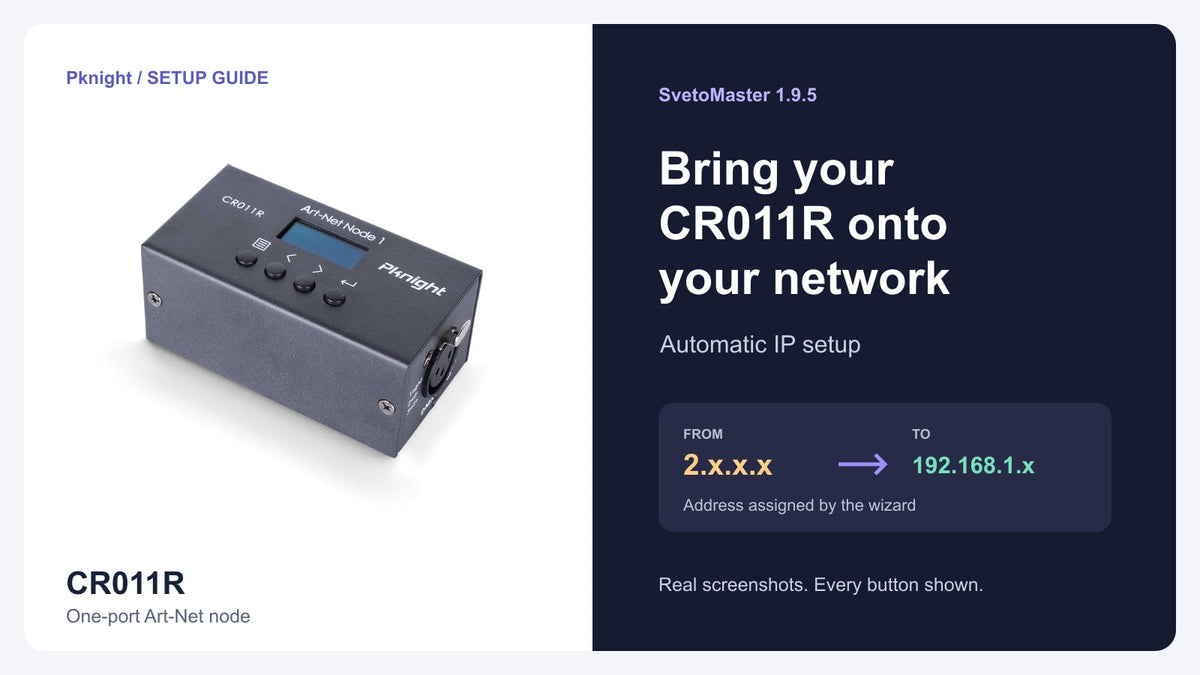
An Art-Net node can be powered on and connected to your router, yet still fail to appear in the lighting software. One possible reason is its IP configuration: a converter previously set to a 2.x.x.x address may need a different address for your current network.
We reproduced that situation with a Pknight CR011R and SvetoMaster 1.9.5. Using the software's network setup wizard, we assigned the converter an address on our local network, rediscovered it as CR011R_001 at 192.168.1.242, and applied its Art-Net connection settings. The computer stayed on its existing network at 192.168.1.104; we did not change the Windows adapter IP, type a new node address manually, or use the converter’s hardware buttons during this software walkthrough.
This guide follows the actual screens from that test, including the useful button hidden behind Fixtures did not respond — other ways.
Quick button path: Settings → Network setup wizard → Search for devices → Fixtures did not respond — other ways → Give the converter an address on my network → Apply and connect.
Tap or click any image to view it at full size.
What our CR011R test confirmed
The computer used Wi-Fi, while the CR011R used an Ethernet cable to the same router. We started with the converter configured in the 2.x.x.x range.
| Item | Observed in this test |
|---|---|
| Software | SvetoMaster 1.9.5 on Windows |
| Computer address | 192.168.1.104 |
| Computer connection | Wi-Fi to the router |
| CR011R connection | Ethernet to the same router |
| Rediscovered node | CR011R_001 |
| Assigned node address | 192.168.1.242 |
| Reported outputs | One output, Art-Net address 0 |
| Applied software settings | IP 192.168.1.242; Universe 1 → 0 |
The result confirms address reassignment, discovery and application of the connection settings for this unit. A real fixture's response to DMX remains a separate check.

Before you begin
Have SvetoMaster running on your Windows computer, power the CR011R, and connect its network port to your router or switch. Check that your computer has access to that same local network.
Leave only the converter you intend to configure connected during the address-change operation. The wizard warns that its address command is broadcast and cannot target one selected converter among several devices. This matters even if the list currently looks empty.
Our computer used Wi-Fi successfully for this setup test. The wizard recommends a wired computer connection for more reliable lighting operation; this address-configuration result is not a Wi-Fi performance test.
Step 1: Open the network setup wizard
In SvetoMaster, choose Settings → Network setup wizard.

Step 2: Confirm the interface and search
The first screen checks the connection and lists the computer's network interfaces. In our screenshot, Wi-Fi — 192.168.1.104 was marked as the connection through which the output would leave.
Check that the listed interface is the one connected to your lighting network, then click Search for devices. If several adapters are active, pay attention to which one the wizard identifies; a VPN or another network connection can complicate discovery.

Step 3: Open the other connection methods
Our first search did not receive a reply from the converter. The wizard enabled broadcast output and displayed the yellow message Output is on, but the link is not confirmed.
This screen is important to read carefully. Broadcast output and a confirmed reply from a particular node are different things. The software is not yet reporting a discovered CR011R at a usable individual address.
To continue with address configuration, click the gray Fixtures did not respond — other ways button.
Use The fixtures work only when you have actually checked responding fixtures. It is a confirmation of physical output, not the button for changing the node's IP address.

Step 4: Give the converter an address on your network
The next screen showed No devices found, followed by a section titled The converter may be set to a different network.
Below the explanation and broadcast warning, click the amber button:
Give the converter an address on my network
That is the exact label in our tested branch of version 1.9.5. It is the address-change action. Simply enabling broadcast output is a different operation and does not demonstrate that the converter's IP has changed.

In this run, there was no separate confirmation dialog or manual IP-entry form. The screen changed to Assigning the address.... Let that operation finish so the program can search for the converter again.
Step 5: Confirm the rediscovered CR011R
After the operation, the wizard advanced to Step 3 and found one device:
CR011R_001 — 192.168.1.242 — outputs: 1 (0)
Check the device name and address before applying the result. Our converter now appeared in the same 192.168.1.x address range as the computer. The 1 (0) entry describes one output with Art-Net address 0; it is unrelated to the IP address's last digit.
The wizard stated that 192.168.1.242 would be used and that the first universe would go to output number 0. We then clicked Apply and connect.

Step 6: Check the applied Art-Net settings
Open the DMX panel (expand Art-Net / sACN if needed). In our run, the Art-Net fields showed:
- IP: 192.168.1.242
- Universe 1 → 0
- A Disconnect button, showing that the software connection was active.
This panel lets you check the destination that SvetoMaster is using. Typing an address into the destination field is not the same operation as changing the address stored in the physical converter.

Check fixture output after network setup
Once the network settings are correct, verify the DMX side with your own fixture or tester. For an Art-Net-to-DMX setup, check the CR011R's conversion direction, its port's Art-Net settings, and the fixture's DMX starting address and channel mode.
Then send a simple, deliberate lighting command and observe the physical fixture. A visible scene in the software's 3D visualizer does not establish that a real fixture received DMX. Our screenshots document the address and software connection workflow, so they should not be read as a fixture-output test.
If discovery still fails, start with power, Ethernet, the computer's selected interface and the application's Windows network permission. Allow the application through the appropriate firewall rules rather than disabling the firewall entirely. If the wizard shows a search error, resolve that error before treating the result as an address mismatch.
Frequently asked questions
Does broadcast output change the CR011R's IP address?
No. In this workflow, the address change came from Give the converter an address on my network. The preceding broadcast-output screen was a separate connection method.
Should I set my CR011R to 192.168.1.242?
Use settings appropriate to your own network. This was the address assigned in our repeat test, not a universal recommendation. Copying it could conflict with another device. Network membership depends on both the IP address and subnet mask.
Is Art-Net universe 0 the same as the node's IP address?
No. The IP identifies the network destination; the Art-Net universe identifies the lighting data stream. Here, SvetoMaster's logical Universe 1 mapped to Art-Net address 0.
Can I leave several converters connected while changing addresses?
Follow the wizard's warning and isolate the intended converter. The address command is broadcast and cannot be aimed at just one selected device in this workflow.
Does this guarantee the same result with every CR011R or other model?
This article documents our tested CR011R with SvetoMaster 1.9.5. Other firmware revisions, models and network layouts need their own checks. The CR011R MK II is a separate product.
Does a connected status prove my fixtures work?
It confirms the software connection state. Check the real fixture or DMX tester before confirming lighting output, and do not use The fixtures work simply to dismiss a message.
Can I still use the CR011R's physical controls?
Yes. Its OLED menu includes Local IP and Subnet Mask settings. The CR011R manual describes those onboard controls.
Build your Art-Net setup with CR011R
The Pknight CR011R is a compact, bidirectional Art-Net/DMX node with one DMX universe. This tested SvetoMaster workflow provides a practical way to bring the unit onto the local network before checking the rest of your lighting setup.
Explore the CR011R product page, visit SvetoMaster, or read its network setup documentation. For help with your Pknight hardware, contact info@pknightpro.com with your model, firmware version and a screenshot of the network settings.